Install JavaFX on Ubuntu 24.04

Brooks Computing Systems - Jacksonville
Visit Brooks Computing Systems
Mainframes, Desktops & Web Sites

Install the Ubuntu packaged JavaFX:
sudo apt update
sudo apt install openjfx
Verify:
dpkg -l | grep openjfx Screenshot Example
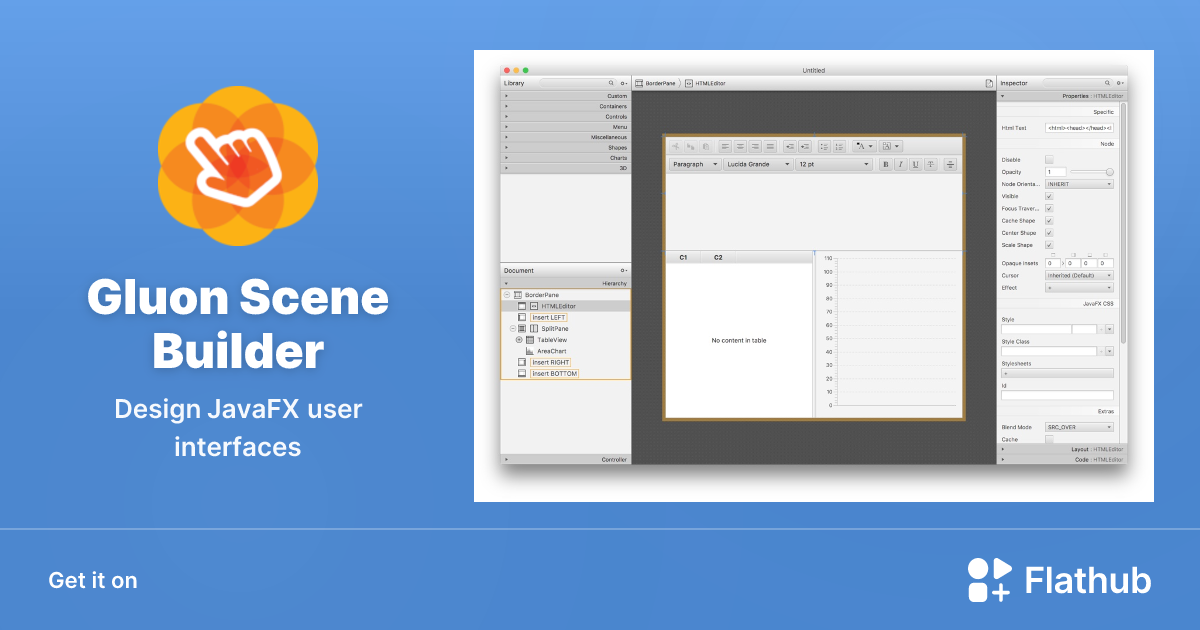
Gluon HQ JavaFX
Package Verification
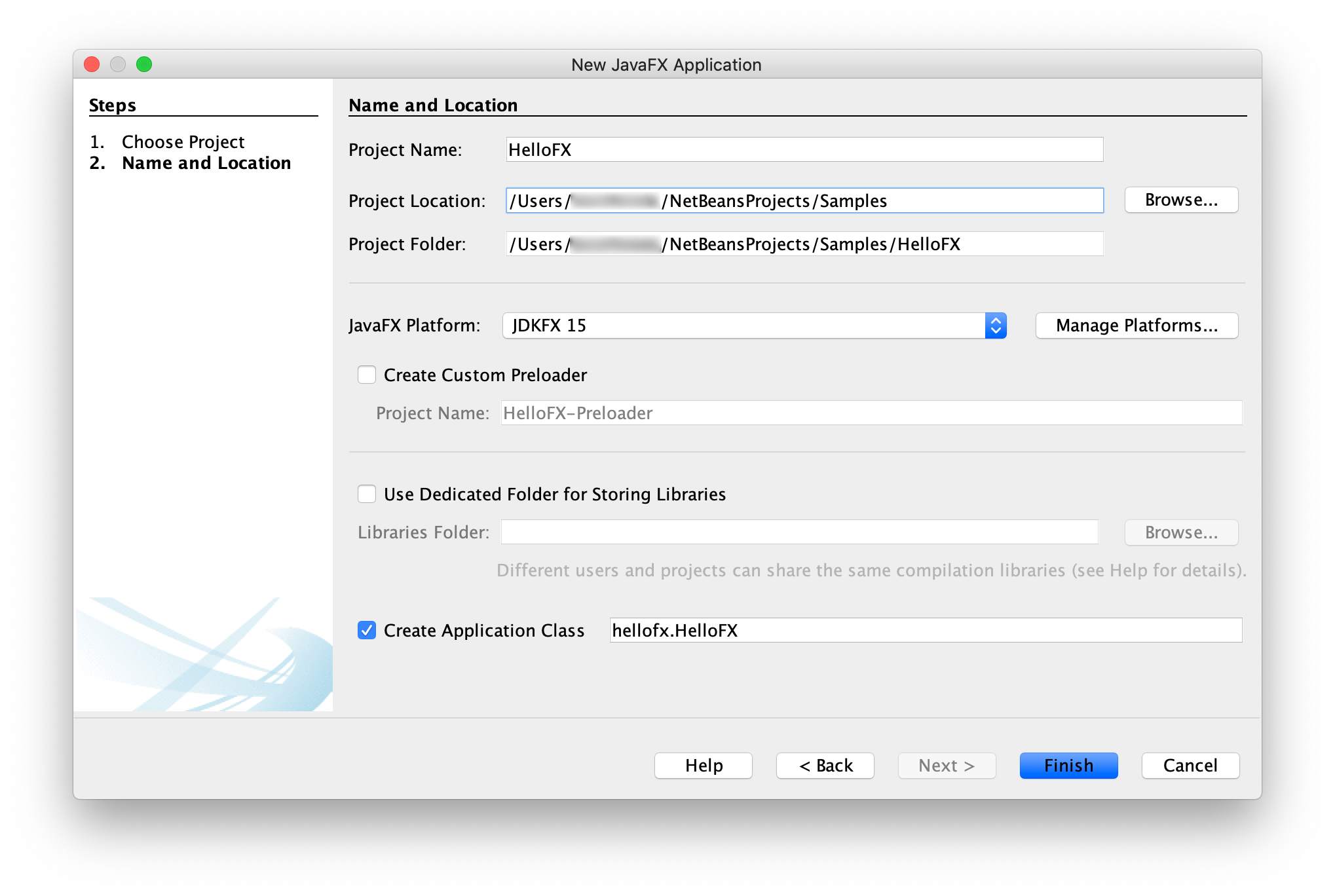
NetBeans JavaFX Setup
Download and install a JavaFX SDK under /opt/javafx:
wget https://download2.gluonhq.com/openjfx/21/openjfx-21_linux-x64_bin-sdk.zip
unzip openjfx-21_linux-x64_bin-sdk.zip
sudo mv javafx-sdk-21 /opt/javafx
Run an app with module-path:
java --module-path /opt/javafx/lib --add-modules javafx.controls,javafx.fxml -jar yourapp.jar SDK Download
Placeholder: Replace with your screenshot
/opt/javafx Layout
Placeholder: Replace with your screenshot
Install Scene Builder via Snap:
sudo snap install scenebuilder --classic
scenebuilder
Scene Builder UI
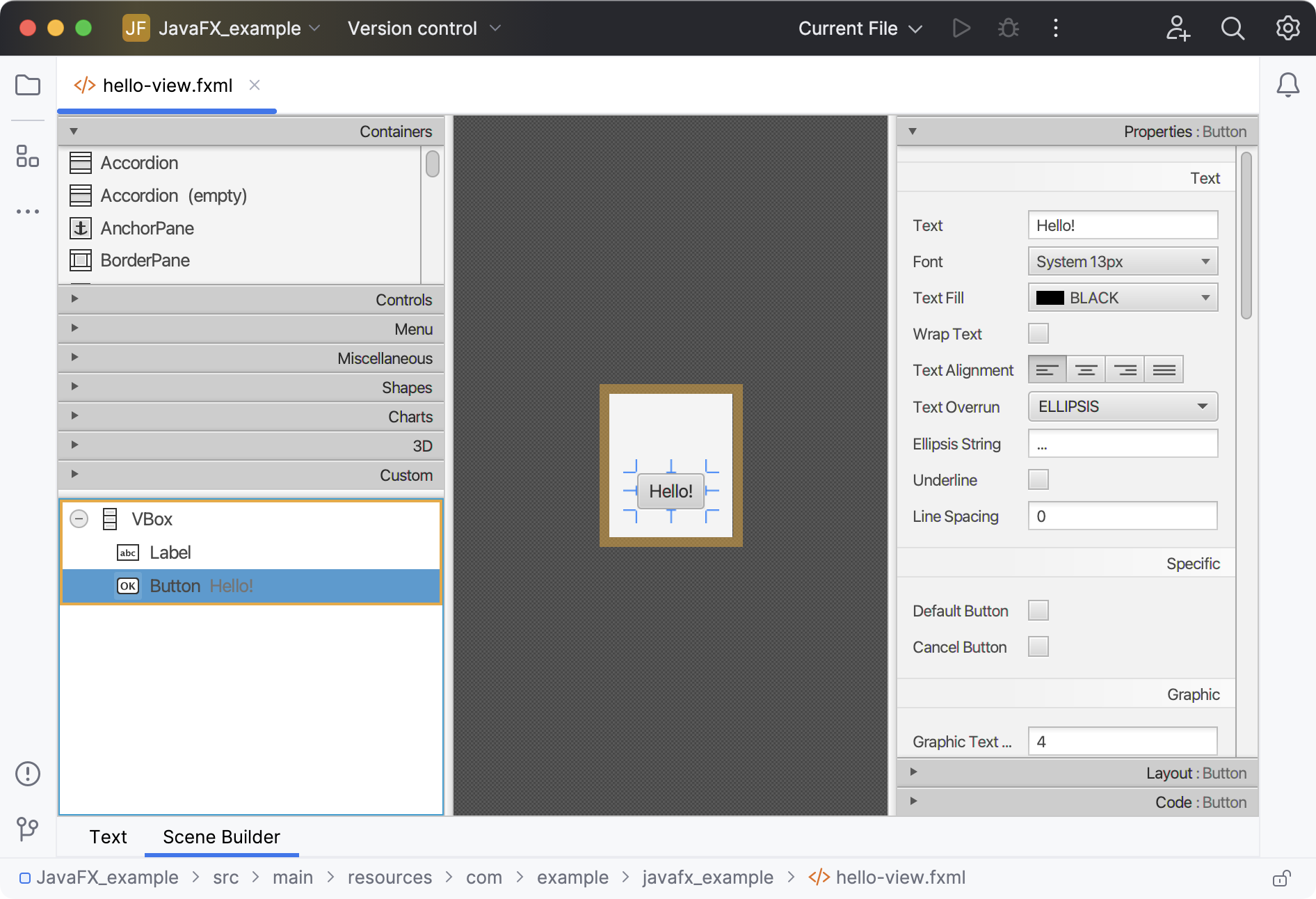
JavaFX Scene Builder
FXML Workflow
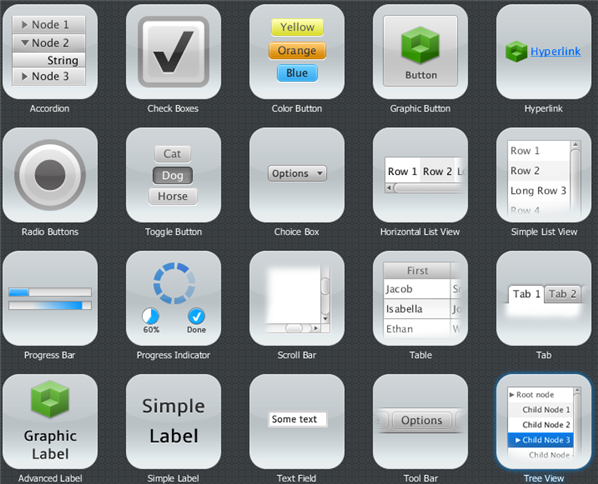
JavaFX UI Controls
Install IntelliJ Community (Snap):
sudo snap install intellij-idea-community --classic IntelliJ JavaFX Wizard
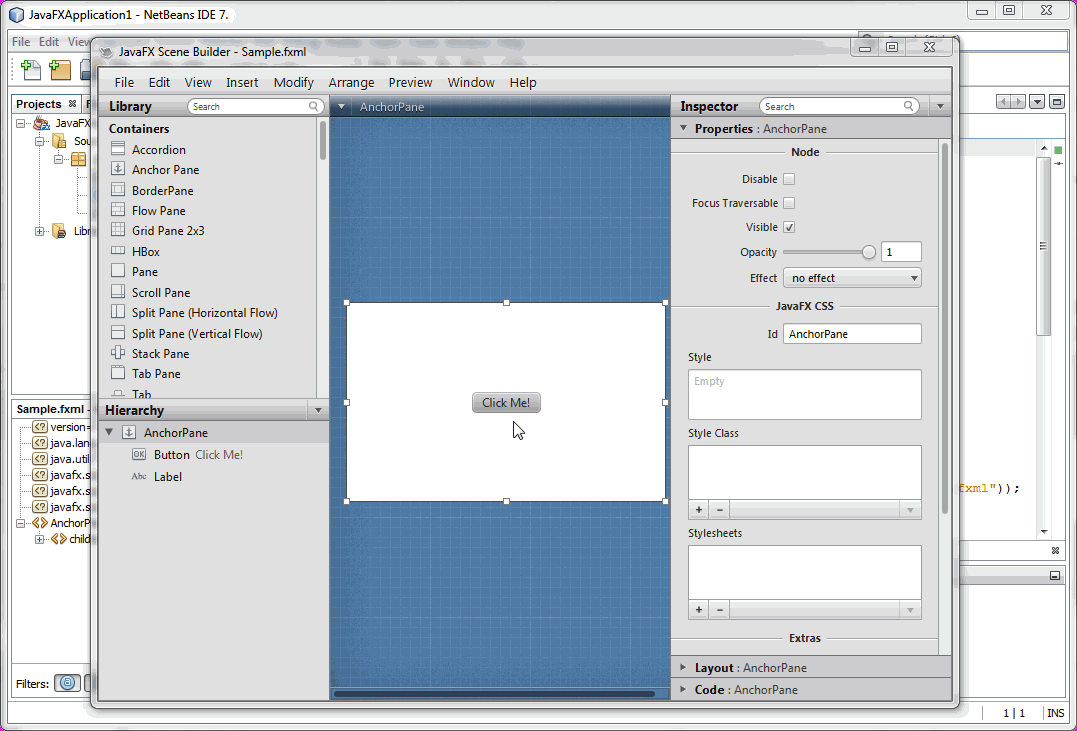
Opening Scene Builder from NetBeans
Run Config
Placeholder: Replace with your screenshot
Create a minimal JavaFX app:
cat << 'EOF' > HelloFX.java
import javafx.application.Application;
import javafx.scene.Scene;
import javafx.scene.control.Label;
import javafx.stage.Stage;

public class HelloFX extends Application {
    public void start(Stage stage) {
        stage.setScene(new Scene(new Label("JavaFX works!"), 300, 200));
        stage.show();
    }
}
EOF
Compile and run (manual SDK under /opt/javafx):
javac --module-path /opt/javafx/lib --add-modules javafx.controls HelloFX.java
java  --module-path /opt/javafx/lib --add-modules javafx.controls HelloFX
Compile Output
Placeholder: Replace with your screenshot
HelloFX Window
Placeholder: Replace with your screenshot
Placeholder: Replace with your image
Placeholder: Replace with your image
Placeholder: Replace with your image
Placeholder: Replace with your image
Placeholder: Replace with your image
Placeholder: Replace with your image