Install Visual Studio Code on Gentoo


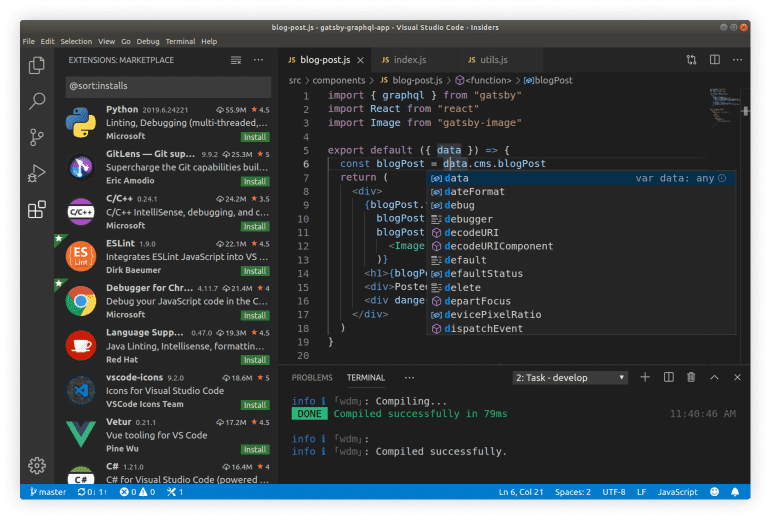

On Gentoo, the easiest route is the packaged build from the repository or overlay that provides the binary package. This keeps install time low and avoids a long local build.
sudo emerge --ask app-eselect/eselect-repository
sudo eselect repository enable guru
sudo emaint sync -r guru
sudo emerge --ask app-editors/vscode
After installation, start it with:
code
If you prefer the open-source build without Microsoft branding, install vscode-oss.
sudo emerge --ask app-editors/vscode-ossRun it with:
code-oss
If Gentoo stops with USE flag or dependency complaints, let Portage write the needed changes, update the config, then rerun emerge.
sudo emerge --ask --autounmask-write app-editors/vscode
sudo etc-update
sudo emerge --ask app-editors/vscode
If you are on Wayland, add the USE flag first:
echo "app-editors/vscode wayland" | sudo tee -a /etc/portage/package.use/vscode
For a cleaner UI and better icon coverage, install common font packages and refresh the desktop database if the launcher does not appear right away.
sudo emerge --ask media-fonts/noto media-fonts/dejavu
update-desktop-database
If you want to run VS Code directly without relying on an ebuild, download the current Linux x64 tarball and launch it manually.
wget https://update.code.visualstudio.com/latest/linux-x64/stable -O vscode.tar.gz
tar -xzf vscode.tar.gz
cd VSCode-linux-x64
./code