BCS - Jacksonville Script Automation


Run this command in your terminal to open multiple SSH tabs:
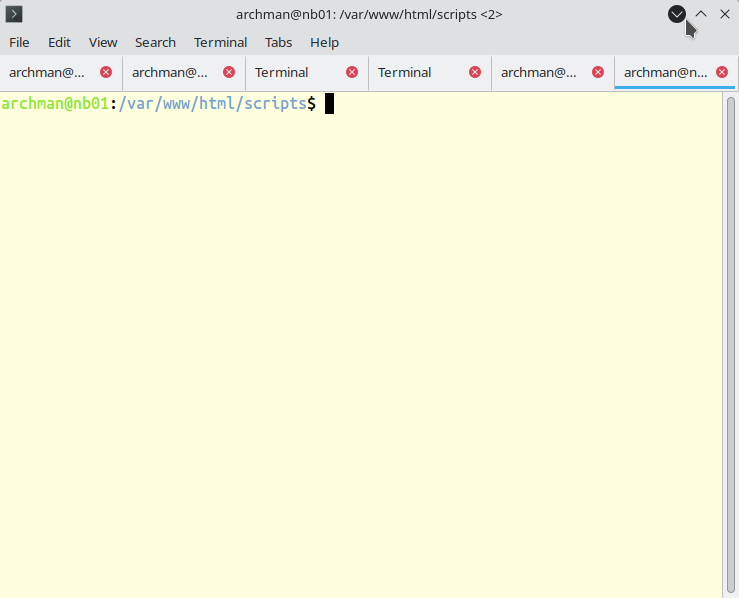
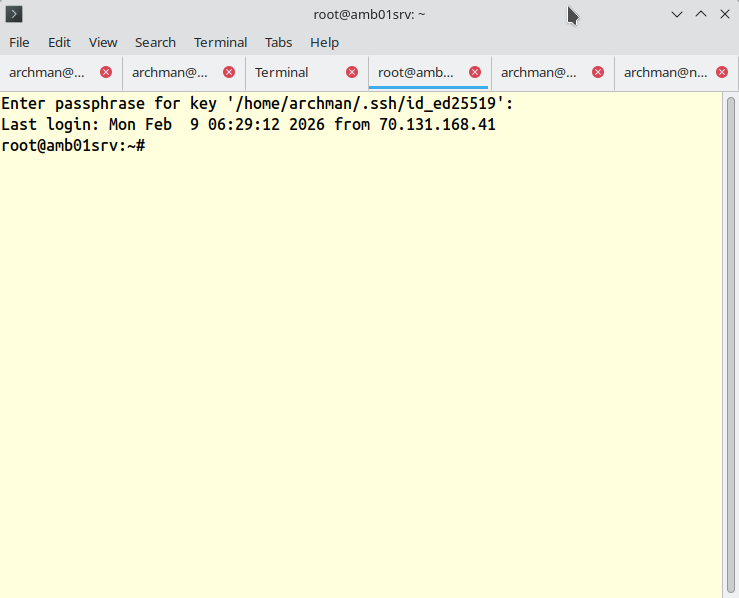
Notice tabs three and four are ssh into production server
mate-terminal \
  --window-with-profile="amb_01" \
  --tab-with-profile="amb_01" \
  --tab-with-profile="amb_01" -e "ssh root@archman.us" \
  --tab-with-profile="amb_01" -e "ssh root@archman.us" \
  --tab-with-profile="amb_01" \
--tab-with-profile="amb_01"More Information
It launches mate-terminal with several tabs,
some already running SSH connections to
root@archman.us.
Extreme care should be exercised when using production
tabs. Some results are unrecoverable.
Command Variants
mate-terminal \
  --window-with-profile="amb_01" \
  --tab-with-profile="amb_01" \
  --tab-with-profile="amb_01" -e "ssh root@archman.us" \
  --tab-with-profile="amb_01" -e "ssh root@archman.us" \
  --tab-with-profile="amb_01" \
--tab-with-profile="amb_01"More compact — same result, easier to read/modify:
bash ~/workspace/bin/open_mate_term.shResult: 6 tabs total (tabs 3 & 4 SSH to production server).
Need more empty tabs? Add commas in the last
{,,,} (e.g. {,,,,} → 8
tabs).
While alternative approaches exist,
this technique creates valuable, real-world-like
scenarios that help learners actively practice and
understand the concept.
Multiple tabs help you monitor several remote sessions at
once without opening many windows.
Six open tabs
equates to six unique workflows.
You can change profile names, add more tabs, or use
--geometry for window size.